Difference between revisions of "Outlook Addin"
| Line 87: | Line 87: | ||
# Confirm security question. | # Confirm security question. | ||
# Close the web browser. | # Close the web browser. | ||
| + | |||
| + | '''Hints:'''<br> | ||
| + | 1) You may need to restart Outlook to let the Add-In appear.<br> | ||
| + | 2) You find the "Decrypt regimail" button in the "Start" ribbon. Sometimes you might need to switch ribbon tab first. | ||
==Outlook Classic== | ==Outlook Classic== | ||
Revision as of 13:49, 29 October 2025
Contents
Outlook New/o365 web BETA Add-In
Please note that this add-in for Outlook New and Outlook Web (o365) is still beta.
- It offers only limited functionality.
- It may not be fully translated (defaults to English).
- It may not work at all or at all time.
- It may not cover all message content and all content types.
- It may not encrypt properly.
- It may trigger additional "new device" email messages to users.
- Also, please check below compatibility notes!
If you experience any problems and you are willing to report, please send an exact error report with exact versions, all steps you did and maybe even screenshots to support (at) regify.com.
Compatibility notes for the beta AddIn:
We tested the following combinations on Windows 11 (September 2025):
✓ Works with O365 web (eg outlook.live.com) on Windows, MacOS and Linux. (c)
✓ Works with Outlook Classic 2024 with Hosted Exchange 2019 account on Windows. (a) (b)
✓ Works with Outlook Classic 2024 and O365 account on Windows. (a)
✓ Works with Outlook New with O365 account on Windows.
✗ Not working with Outlook New with Hosted Exchange 2019 account (Outlook New does not support such accounts in general).
✗ Not working with Exchange 2019 OWA (web access).
✗ Not working with Exchange 2016 OWA (web access).
✗ Not working with any Outlook Classic and On-Prem Exchange 2019 or 2016 backend. (a)
✗ Not working with any Outlook Classic 2019 or 2016 and O365 account. (a)
(a) Consider using our regular Add-In for Outlook Classic contained in regify client setup (COM Add-In)!
(b) Due to Microsoft documentation, it works because of Outlook 2024 LTSC (volume licensing). It will not work with any previous Outlook Classic version.
(c) We've seen issues for saving decrypted regimail message attachments with Firefox browsers. If you need this, use any other up to date web browser like Edge, Chrome, Opera, Vivaldi etc.
Background: Firefox is interpreting content-security-policy values different than others. Due to this, Firefox blocks BLOB downloads because of Microsofts content-security-policy settings.
FAQ
Q: Why don't you decrypt automatically if an encrypted regimail is received (rgf file)?
A: Office JavaScript Add-Ins cannot run code in the background or automatically when an email is selected or received. Add-In code only executes after the user explicitly opens the add-in. This is a security and performance feature of the Office platform, as documented by Microsoft. Therefore, the regimail Add-In is not able to handle regimails automatically.
Q: Why is there no regimail Add-in buttons in the Outlook GUI?
A: There are such buttons in local installed Outlook New, but for Outlook o365 (in the web), the Microsoft Office Add-In API does not offer any integration into the ribbon menus. Therefore, you are forced to start the Add-In using the "Apps" or "More Apps" buttons to run the regimail Add-In.
We offer you to test the new BETA regimail add-in for Outlook New and Outlook Web (o365). If you want to install the beta version of the add-in, please follow these steps:
Outlook Web (OWA)
In general, you can follow the instrucions from Microsoft (on top, select "Outlook on the web" and then scroll down for "Install a custom add-in from a file").
- Select to create a new email.

- Click the add-ins button.
- Select "Get add-ins" option.
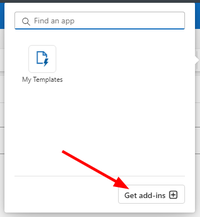
- In the Add-Ins for Outlook dialog, select "My add-ins" on the left.
- Scroll down to Custom Addins and click the "Add a custom add-in" button.
- If "Add from URL..." option is available:
- Enter the URL https://apps1.regify.com/client-beta/outlook_regimail_beta.xml and follow instructions.
- If the "Add from URL..." option is not available:
- Right click this Link: outlook_regimail_beta.xml Select "Save target as..." option or similar to save it to your local PC.
- Then select "Add from File..." option in Outlook add-in dialog and provide the just downloaded file.
- Now follow the instructions of Outlook.


usage
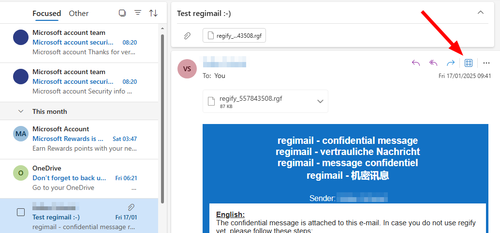
Writing: During writing, the top ribbon bar is switching to "Message" view. There, you can click the "Apps" button to reach the regify add-in for encryption. Follow the instructions on screen. Reading: If an email is visible in preview, there appears a small "Apps" button on top of the message window. There you can reach the regify add-in for viewing the message.
notes
We were asked why we're not adding the buttons to the main menu and compose menu. The simple reason is, that Microsoft does not allow add-ins to place their own buttons.
Outlook new
In general, you can follow the instrucions from Microsoft (on top, select "New Outlook" and then scroll down for "Install a custom add-in from a file").
- Click the add-ins button.
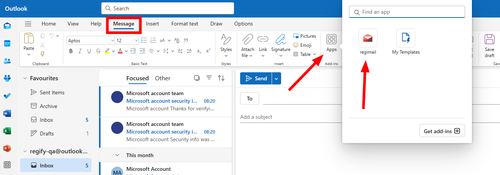
- Select "Get add-ins" option.
- In the Add-Ins for Outlook dialog, select "My add-ins" on the left.
- Scroll down to Custom Addins and click the "Add a custom add-in" button.
- If "Add from URL..." option is available:
- Enter the URL https://apps1.regify.com/client-beta/outlook_regimail_beta.xml and follow instructions.
- If the "Add from URL..." option is not available:
- Right click this Link: outlook_regimail_beta.xml Select "Save target as..." option or similar to save it to your local PC.
- Then select "Add from File..." option in Outlook add-in dialog and provide the just downloaded file.
- Now follow the instructions of Outlook.


Outlook Classic 2024
The new Outlook AddIn is also capable of running in most recent Outlook Classic 2024. In general, you can follow the instrucions from Microsoft (on top, select "Classic Outlook" and then scroll down for "Install a custom add-in from a file").
- Click "File" -> "Manage Add-ins" (button at the bottom). Now the web browser opens up on your webmail email account.
- Log-in to your webmail email account.
- Click the plus (+) on top of the Add-Ins list.
- Select "Add from URL..." and enter https://apps1.regify.com/client-beta/outlook_regimail_beta.xml
- Confirm security question.
- Close the web browser.
Hints:
1) You may need to restart Outlook to let the Add-In appear.
2) You find the "Decrypt regimail" button in the "Start" ribbon. Sometimes you might need to switch ribbon tab first.
Outlook Classic
Supported versions
The current add-in for Microsoft Outlook Classic, shipped with the current regify client setup, is available for the following versions:
- Outlook 2019 (32 Bit & 64 Bit)
- Outlook 2021 / Office 365 (32 Bit & 64 Bit)
- Outlook 2024 / Office 365 (32 Bit & 64 Bit)
Please respect that we're no longer supporting Outlook before 2019. Running this e-mail client is also no longer secure. Please consider upgrading to a newer version. Or how about trying Mozilla Thunderbird with its great email and calendar functions if you use IMAP or POP3 capable accounts?
Functions
The add-in for Microsoft Outlook Classic offers the following functions:
- create new regify e-mails
- forward, reply and reply all using regify
- reconvert regify mails to ordinary e-mails
- automatically reconvert while receiving
- configure regify settings (account settings)
- invite new users to regify
Setup
The Outlook add-in is installed automatically (in the correct version) during setup of the regify client. If you do not like to install the Outlook add-in during setup, you can prevent it in the installer GUI. Please find additional information about setup options in the regify client deployment manual.
